
 3 min read


Trying to check advertising landing pages across different regions, but your new browser profile still uses your local IP address? After creating a profile, you also need to configure its proxy connection. This guide explains how to connect 9HTTP proxies to AdsPower, from choosing a proxy product to entering credentials, testing the connection, and resolving common issues.
1. Choose the Right 9HTTP Proxy
Think of each browser profile as a separate workspace. Its proxy provides the network exit through which that workspace connects to websites. After creating multiple profiles, check the proxy settings for each one.
9HTTP offers Dynamic Residential Proxies, Long Acting Static ISP, and Unlimited Residential Proxies. Unlimited Residential Proxies include bandwidth-based and port-based plans.
| Business Requirement | Product to Consider | Configuration Priorities |
|---|---|---|
| Advertising verification and market research across regions | Dynamic Residential Proxies | Target location, rotating or sticky sessions |
| Daily management of authorized cross-border e-commerce stores | Long Acting Static ISP | Fixed exit IP, service validity, and renewal |
| Continuous, high-volume data collection conducted in compliance with applicable requirements | Unlimited Residential Proxies | Bandwidth, ports, and rotation settings |
Dynamic Residential Proxies support HTTP and SOCKS5, with rotating and sticky session options. Consider sticky sessions when checking several pages in sequence. For tasks requiring a fixed exit IP over a longer period, consider Long Acting Static ISP. Sticky session availability and duration depend on the applicable plan and configuration.
2. Prepare Your 9HTTP Proxy Connection Details
Log in to the 9HTTP dashboard and open the configuration or connection details page for your purchased product. Prepare the following five items.
| Connection Detail | Use in AdsPower |
|---|---|
| Proxy protocol | Select the supported type, such as HTTP or SOCKS5 |
| Proxy host | Enter the server hostname or IP address |
| Proxy port | Enter the port assigned to the connection |
| Proxy username | Enter the complete authentication username |
| Proxy password | Enter the corresponding authentication password |
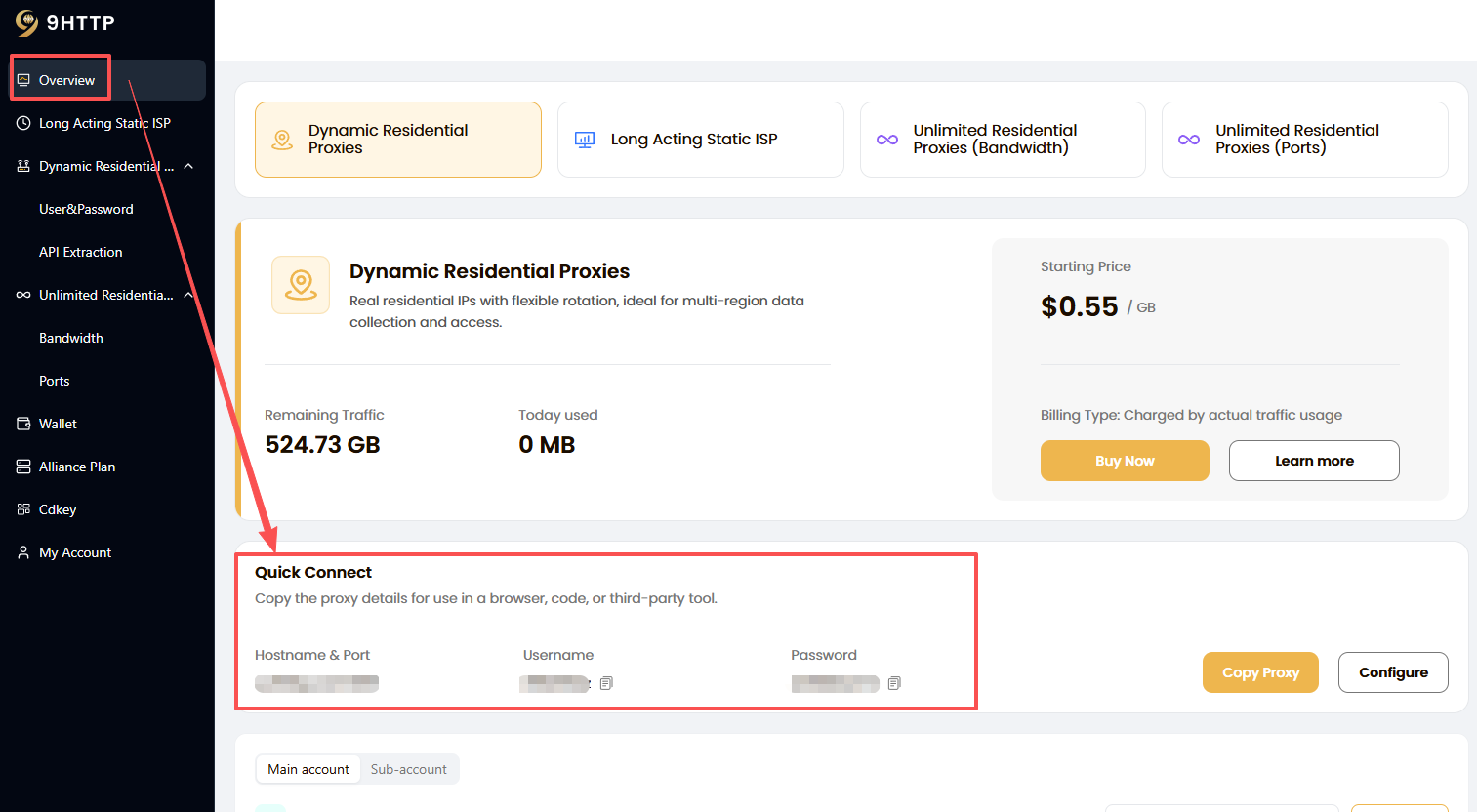
The proxy host and exit IP may be different. The host is the entry point your software connects to, while the exit IP is the address the destination website sees. Do not replace the proxy host with an IP address shown in a connection check.
If the generated username contains location or session parameters, copy it in full. Avoid removing any part of it or mixing connection details from different products.
Before proceeding, confirm that your plan is active, proxy resources are available, and your device can connect to the proxy server. The 9HTTP website states that its proxy services are not supported for use in mainland China.
3. Configure and Test the Proxy in AdsPower
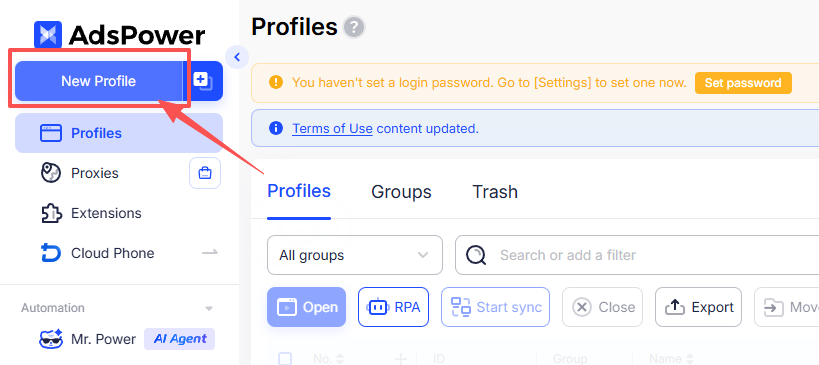
Step 1: Open the Profile’s Proxy Settings
Create a browser profile in AdsPower or edit an existing one, then open the proxy settings section. Button names may vary depending on the client version.
Step 2: Select the Matching Protocol
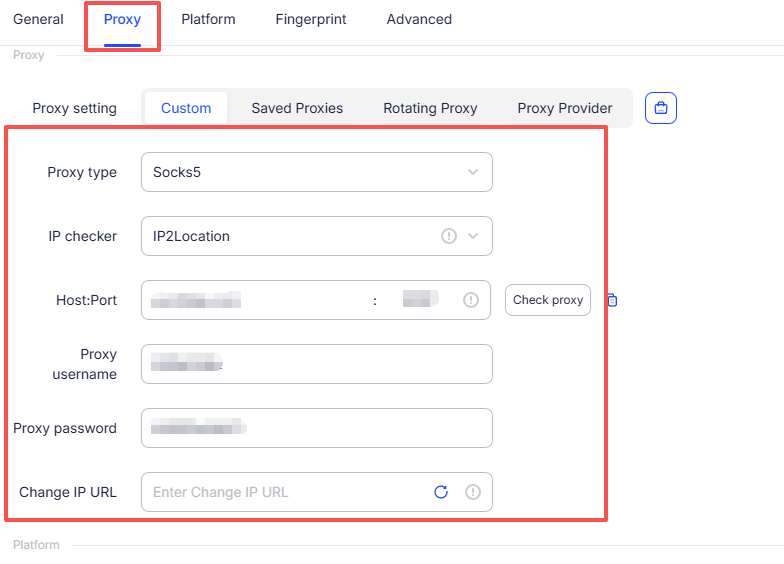
Choose the proxy type that matches your 9HTTP connection details. For example, select SOCKS5 if your connection was generated for SOCKS5.
AdsPower supports proxy types including HTTP, HTTPS, and SOCKS5. Your selection must match the protocol supported by the proxy connection.
Step 3: Enter the Four Connection Parameters
Enter the proxy host, port, username, and password in their corresponding fields. For your first configuration, paste each value separately so you can check it easily.
AdsPower also supports automatic field completion when connection details in the host:port:username:password format are pasted into the proxy host field. Check every field afterward, particularly if the username or password contains special characters.
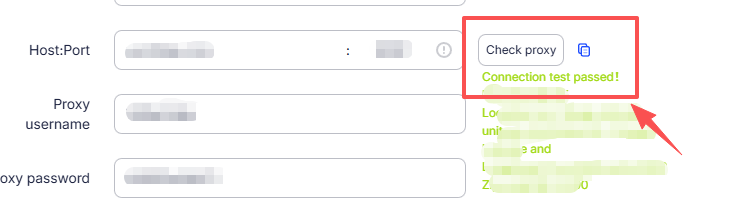
Step 4: Click “Check Proxy”
Once the connection test passes, save the profile and launch its browser. Open the relevant business page to verify actual access.
A successful test confirms that AdsPower can connect to the proxy. You still need to check whether the advertising landing page loads correctly and whether its content matches the expected regional experience.
If the detected location differs from the location you selected when purchasing or configuring the proxy, try another IP lookup provider in AdsPower to cross-check the result.
Step 5: Use the Proxy List to Manage Multiple Connections
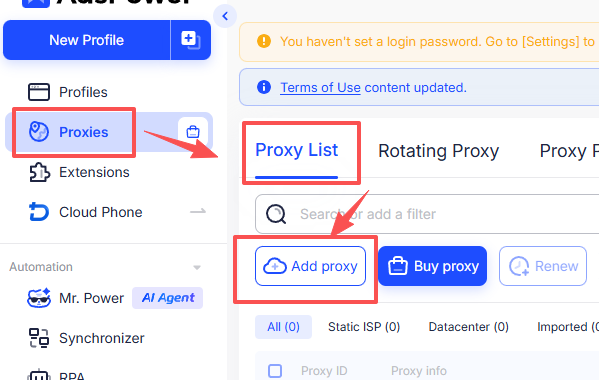
To maintain several proxy connections, open the proxy list, click the option to add a proxy, and import the details in the format specified by the interface.
You can then select a saved proxy from the target profile’s proxy settings, reducing repeated data entry.
4. Troubleshoot Connection Issues in Order
Start with the connection settings, then check your plan status and network connectivity. Run the proxy test again after each change.
| Issue | What to Check First |
|---|---|
| Authentication failure | Confirm that the username and password are complete and that you have not used your website login password |
| Connection timeout | Check the host, port, and connectivity between your device and the proxy server |
| A previously working connection fails | Check plan expiration, remaining traffic, and any credential changes |
| The proxy test passes, but a business page does not work | Check the destination website’s status, access permissions, and page loading behavior |
| The exit IP changes | Check whether rotation is enabled and whether the sticky session is still valid |
When contacting technical support, provide the proxy type, error message, time of occurrence, and AdsPower client version. Hide passwords in any screenshots.
5. Frequently Asked Questions
Ⅰ.Should I Choose HTTP or SOCKS5?
Choose a protocol supported by your current 9HTTP connection and select the same type in AdsPower. There is no need to change a working connection solely to use another protocol.
Ⅱ.Will Saving a Browser Profile Keep a Dynamic Proxy IP Fixed?
Saving a profile preserves its connection settings. Whether the exit IP changes depends on the proxy product, rotation mode, and session conditions.
Ⅲ.Will Multiple Profiles Using the Same Proxy Receive Different IP Addresses?
Not necessarily. The exit IP depends on how the proxy service assigns connections. Sharing the same connection details does not mean that each profile receives a separate exit IP.
Ⅳ.Can I Start Running Profiles in Bulk Immediately After Setup?
First, use one profile to complete the connection test and verify the relevant business pages. Then gradually increase the number of profiles.
When collecting data, operate in compliance with applicable requirements and follow robots directives, destination website terms, and relevant rules.
To begin, choose 9HTTP Dynamic Residential Proxies, Long Acting Static ISP, or an Unlimited Residential Proxy plan based on bandwidth or ports. Then follow this guide to validate one browser profile. 9HTTP provides multiple proxy products, a centralized dashboard, and 24/7 technical support to help you configure access according to your business duration and usage needs.
This tutorial is intended for advertising display verification, market research, and authorized cross-border e-commerce store management. Use proxy and browser tools in accordance with applicable laws, platform terms, and the scope of your authorization.