
 5 phút đọc


If you encounter 407 Proxy Authentication Required while using 9HTTP proxies to access websites, call APIs, or run data collection scripts, start by checking your proxy credentials and client configuration.
HTTP 407 means a proxy requires valid authentication. The response alone does not establish that the proxy IP is unavailable or that the destination website has blocked your request. The key question is whether your client is sending the required credentials to the correct proxy.
This guide covers common causes of HTTP 407 errors and explains how to troubleshoot your 9HTTP connection with cURL and Python Requests.
What Is HTTP 407 Proxy Authentication Required?
HTTP 407 is an authentication challenge returned by a proxy server. The client must complete proxy authentication before the proxy can forward the request.
A typical response looks like this:
HTTP/1.1 407 Proxy Authentication Required
Proxy-Authenticate: Basic realm="Proxy"
The Proxy-Authenticate response header identifies the authentication scheme required by the proxy.
A single 407 response can be part of a normal authentication exchange. If the client retries with valid credentials and connects successfully, the initial challenge does not necessarily indicate a problem. Repeated 407 responses or requests that stop at the authentication stage require investigation. See MDN’s HTTP 407 documentation for the status code definition.
For 9HTTP users, the first step is to verify the connection details provided for your selected product, then check how your tool or code uses those details.
Why Might You Encounter a 407 Error When Using 9HTTP?
The following checks can help identify proxy authentication problems. Always follow the requirements of your selected 9HTTP product and the official documentation.
1. The proxy address is configured, but credentials are missing
The proxy hostname and port identify where to connect. Authentication credentials establish whether the client can use that connection.
If your access method requires a username and password, entering only the hostname and port may be insufficient. After adding a 9HTTP proxy to a script, browser tool, or API client, check that the required authentication fields are also configured.
2. The credentials do not match the connection configuration
Confirm that you are using the credentials required by your current proxy configuration.
Do not assume your website login password is also your proxy password. Avoid mixing hostnames, ports, and credentials from different configurations. Check copied values for extra spaces, line breaks, and missing characters.
3. The proxy username or its parameters are incomplete
If your generated configuration includes location, session, or other parameters in the username, preserve the complete format.
Follow the relevant product rules when changing parameters manually. During troubleshooting, test the original generated configuration first. Once the basic connection works, adjust one parameter at a time.
4. Credentials are entered in the wrong authentication fields
Some clients separate destination authentication from proxy authentication.
For example, an API client’s Authorization settings usually apply to the destination API and may not authenticate the proxy connection. Enter your 9HTTP credentials in the tool’s proxy authentication settings.
5. The application is using an unexpected proxy configuration
System settings, environment variables, application settings, and corporate network proxies can all affect the connection path.
If the same 9HTTP configuration works in one tool but returns 407 in another, check whether both tools are actually using the same proxy.
9HTTP 407 Error Troubleshooting Checklist
Work through these checks before making repeated configuration changes:
| Item | What to check |
|---|---|
| Proxy product | Confirm the connection details belong to the 9HTTP product you are using. |
| Hostname and port | Compare both values with your current connection configuration. |
| Credentials | Copy the complete username and password again, removing unintended characters. |
| Username parameters | Check any additional parameters against the product’s required format. |
| Authentication fields | Make sure credentials are entered in the proxy authentication fields. |
| Runtime environment | Check environment variables, system settings, and corporate proxies. |
| Account and product status | Confirm the relevant service is available for use. |
| Minimal test | Run one independent request on the machine experiencing the error. |
Whether account restrictions, plan status, or quota issues produce a 407 response depends on the service implementation. Interpret the actual response alongside the product documentation rather than treating every connection failure as an authentication error.
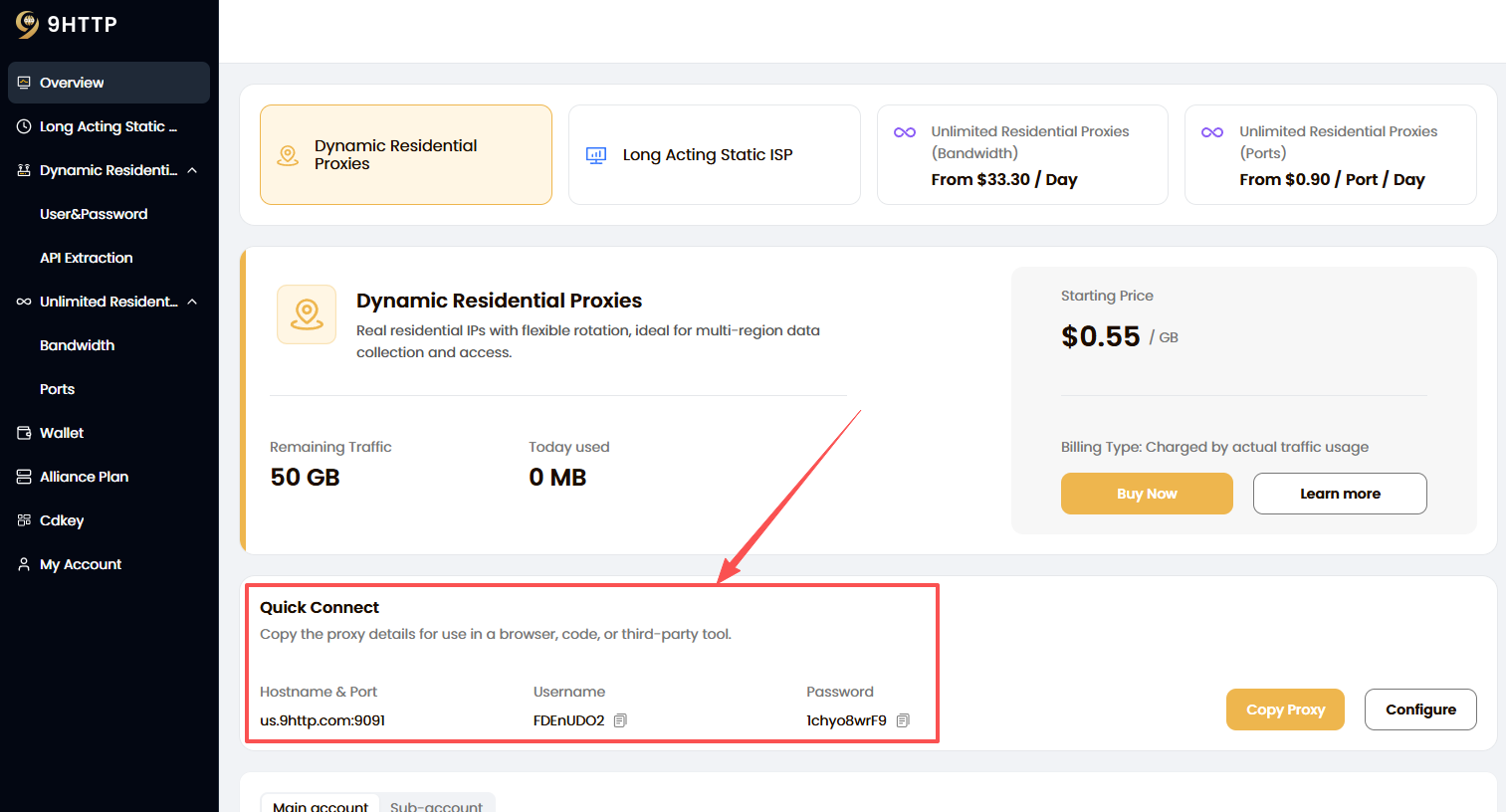
Step 1: Verify Your 9HTTP Connection Details
Prepare the information required by your current access configuration:
- Proxy hostname
- Proxy port
- Connection protocol
- Proxy username and password, if required
These values should come from the same valid configuration.
9HTTP offers different proxy products, so use the settings associated with your selected product. Check the 9HTTP proxy product page to confirm the product type, then consult the setup documentation for connection instructions.
The scheme in a proxy URL describes how the client connects to the proxy. An HTTPS destination does not automatically require a proxy URL beginning with https://.
Step 2: Test Your 9HTTP Proxy with cURL
Send a simple request independently of your application to narrow down the problem.
The following command applies to an HTTP proxy connection that requires username-and-password authentication. Replace the placeholders with your 9HTTP connection details:
curl --verbose --connect-timeout 10 --max-time 30 --proxy "http://PROXY_HOST:PROXY_PORT" --proxy-user "PROXY_USERNAME" "https://example.com/"When you provide only the username, cURL prompts you for the proxy password.
In Windows PowerShell, use curl.exe if curl resolves to a different command.
| Option | Purpose |
|---|---|
--proxy | Specifies the 9HTTP proxy hostname and port. |
--proxy-user | Provides the proxy authentication username. |
--verbose | Displays connection and response details. |
--connect-timeout | Limits the time allowed to establish the connection. |
--max-time | Limits the total request duration. |
If your proxy configuration requires authentication negotiation, consider --proxy-anyauth according to its requirements. See the official cURL manual for option details.
How to interpret the result
If the request succeeds: The configuration used in this test can complete the connection. Compare it with the settings used by your application.
If it repeatedly returns 407: Continue checking the credentials, authentication method, and whether another proxy is involved.
If a different error appears: Investigate that error separately. For example, a connection timeout requires different checks from an authentication failure.
Logs may contain sensitive information. Remove passwords and authorization headers before sharing them.
Step 3: Check Your Python Requests Proxy Configuration
When connecting to 9HTTP from Python, start with a standalone test to separate connection issues from your application logic.
This example applies to an HTTP proxy that supports username-and-password authentication:
import os
from urllib.parse import quote

import requests

username = quote(os.environ["PROXY_USERNAME"], safe="")
password = quote(os.environ["PROXY_PASSWORD"], safe="")
host = os.environ["PROXY_HOST"]
port = os.environ["PROXY_PORT"]

proxy_url = f"http://{username}:{password}@{host}:{port}"

proxies = {
    "http": proxy_url,
    "https": proxy_url,
}

with requests.Session() as session:
    # Avoid inherited proxy settings during this diagnostic test.
    session.trust_env = False

    response = session.get(
        "https://example.com/",
        proxies=proxies,
        timeout=30,
    )

    response.raise_for_status()
    print(response.status_code)
Before running the example, set the following environment variables to your 9HTTP connection details:
| Environment variable | Value |
|---|---|
PROXY_USERNAME | Complete proxy username |
PROXY_PASSWORD | Proxy password |
PROXY_HOST | Proxy hostname |
PROXY_PORT | Proxy port |
The example encodes the username and password separately to prevent characters such as @ and # from changing the proxy URL’s structure.
The http and https keys in the proxies dictionary refer to destination URL schemes. Both can use the same HTTP proxy address when that proxy supports HTTPS tunneling. See the Requests proxy documentation for configuration details.
What if cURL works but Python still returns 407?
Compare the following:
- Whether Python received the expected environment variables
- Whether both clients use the same hostname, port, and credentials
- Whether credentials are encoded correctly or have been encoded twice
- Whether the application overrides the proxy settings used in the test
- Whether the client supports the proxy’s required authentication method
Do not print proxy_url directly because it contains your proxy credentials.
Step 4: Investigate “Tunnel Connection Failed: 407”
When accessing an HTTPS website through a proxy, you may see:
Tunnel connection failed: 407 Proxy Authentication RequiredThis usually means the client did not complete proxy authentication while attempting to establish an HTTPS tunnel through an HTTP proxy.
If this happens while connecting to 9HTTP, return to the basic connection configuration and verify the proxy address, credentials, and client settings.
Disabling HTTPS certificate verification does not provide the missing proxy credentials and cannot resolve a 407 authentication failure. If a different connection issue appears after authentication succeeds, investigate the new error separately.
Step 5: Compare Local and Server Environments
If the same 9HTTP configuration works locally but fails after deployment, run the same minimal test on the server.
Check whether:
- The deployed environment has the current proxy credentials.
- The service process reads the expected environment variables.
- Other settings override the configuration file.
- The server connects through an additional corporate proxy.
- The running process has loaded the latest configuration changes.
Change one setting at a time and record the results so you can identify what affects the connection.
What Is the Difference Between 407, 401, and 403?
| Status code | Meaning | First checks |
|---|---|---|
| 407 Proxy Authentication Required | A proxy requires valid authentication. | Proxy credentials, authentication method, and proxy configuration |
| 401 Unauthorized | The destination resource requires valid authentication. | Website or API credentials |
| 403 Forbidden | The responding server refuses the request. | Permissions, access rules, and response details |
When you use 9HTTP to access a website, the proxy and the destination can enforce separate access rules. Identify which system returned the response before deciding what to change.
What Information Should You Prepare for 9HTTP Support?
If the connection still fails after these checks, contact 9HTTP through its official support channels.
Prepare the following details:
| Information | Why it helps |
|---|---|
| Proxy product | Identifies the relevant connection requirements. |
| Error time and time zone | Helps locate the affected request. |
| Proxy hostname and port | Identifies the endpoint used. |
| Client name and version | Helps assess compatibility and configuration. |
| Local or server environment | Reveals possible environment differences. |
| Minimal cURL test result | Shows whether the issue can be reproduced independently. |
| Sanitized error logs | Provides connection and authentication details. |
Do not expose complete passwords or authorization headers in public comments, screenshots, or logs.
Frequently Asked Questions
Does a 407 error mean my 9HTTP proxy IP is blocked?
A 407 response alone does not establish that an IP is blocked. It indicates a proxy authentication requirement, so check credentials and authentication settings first.
If the destination website refuses access, examine its status code and response content separately.
Will changing my 9HTTP proxy IP fix a 407 error?
Changing an IP does not correct missing or invalid credentials.
Resolve authentication first. If your access method uses IP-based rules, check the outbound IP against the requirements of that configuration.
Why does authentication fail even when my credentials are correct?
Check whether the credentials are being sent to the correct proxy, entered in the proxy authentication fields, and handled correctly when they contain special characters.
If the username includes additional parameters, verify the complete format.
Can I use the proxy address shown in this article directly?
The examples use placeholders. Replace them with the actual connection details provided for your 9HTTP product.
Use the proxy protocol and authentication method specified in your product’s setup instructions.
Should I keep retrying a request that returns 407?
Repeatedly sending the same rejected credentials is unlikely to resolve the issue. Complete the configuration checks and minimal connection test before resuming normal requests.
Restore Your 9HTTP Proxy Connection
Start troubleshooting a 407 error by verifying your connection details and running one independent test. Once proxy authentication succeeds, apply the working settings to your application and gradually restore your workload.
For setup instructions, consult the 9HTTP documentation. To review the available proxy options, visit the 9HTTP proxy product page.